Officer Review Required:
This tool generates a draft narrative based on the information entered.
The officer is responsible for reviewing, verifying, editing, and approving all content before use in any official report.
Before generating:
Beta Mode:Beta testing notice will appear here.
Maintenance Mode:Maintenance message will appear here.
Deployment Mode:Deployment mode will appear here.Support:support@example.com
User AccountVersion 2.7 Stable
Checking login status...
Create Account
Login
Version 2.7 Stable is the agency pilot package with reviewer routing, pilot metrics, alerts, and training scenario support.
Password Reset Request
Local beta returns a reset token on screen. Production should email a reset link instead.
Set New Password
Admin System SettingsVersion 2.7 Stable
Admin users can control beta mode, the app version display, the global beta disclaimer, and maintenance mode from one place.
When enabled, users must confirm the report contains training/test data only before generating or saving.
Admin Agency / Class ManagementVersion 2.7 Stable
Use this section to organize beta users by formal agency and training class. This supports academy, agency, and instructor-led pilot testing.
Agency
Training Class
Agencies, classes, and assignments will appear here.
Assign reviewers to specific reports or to an entire training class. Reviewer users will see reports assigned directly to them or routed through a class assigned to them.
Reviewer assignments will appear here.
Admin Deployment Health DashboardVersion 2.7 Stable
Admin users can quickly check deployment readiness before beta testing. This verifies database connectivity, configuration source, API-key configuration, logs folder writability, required tables, PHP version, beta mode, and maintenance mode.
Use this before hosted beta deployment to verify PHP extensions, configuration source, file presence, logs folder permissions, database connection, API configuration, and beta deployment posture.
Use this panel before updates or hosted beta changes. It provides backup and restore command examples, table summaries, and a pre-update checklist. It does not run backups or restores from the browser.
Database backup / restore preparation will appear here.
Admin Beta Monitoring DashboardVersion 2.7 Stable
Admin users can quickly review controlled beta activity, including users, saved reports, feedback, audit activity, and recent login activity.
Beta monitoring results will appear here.
Admin Pilot Metrics ReportVersion 2.7 Stable
Admin users can review pilot activity by agency, class, user, report status, feedback, AI quality, and reviewer activity. Use this dashboard to prepare for pilot check-ins and command/instructor updates.
Pilot metrics will appear here.
Alert CenterVersion 2.7 Stable
Admin and Reviewer users can quickly see items that need attention. This is read-only; use the existing reviewer, feedback, user-management, audit, and log tools to take action.
Alerts will appear here.
Training Scenario ModeVersion 2.7 Stable
Reviewer and Admin users can mark saved reports as training scenarios, assign a difficulty level, and add instructor notes. This keeps academy and pilot exercises separate from regular draft reports.
Training scenario reports will appear here.
Admin AI Output Quality ReviewVersion 2.7 Stable
Admin users can review structured beta feedback about AI-generated narrative quality, usefulness, missing-information guidance, and helpfulness.
AI quality review results will appear here.
Reviewer Workflow DashboardVersion 2.7 Stable
Reviewer and Admin users can review reports, add reviewer notes, mark reports as Reviewed, or send reports back to Draft for additional work.
Reviewer workflow results will appear here.
Report Version HistoryVersion 2.7 Stable
Use version history to view snapshots created before report updates and reviewer workflow changes. Admin users may restore a prior version.
Select a report or click View Versions from the Saved Reports table.
Admin Backup / Export ToolsVersion 2.7 Stable
Admin users can export beta data before updates, troubleshooting, or review. CSV exports are useful for beta operations, but they do not replace a full MySQL database backup.
Admin Cleanup ToolsVersion 2.7 Stable
Cleanup actions are admin-only. Export data first when practical. Archive reports when you may need a record later; use permanent delete only for confirmed test data.
Archive Test Reports
Permanent Delete Test Reports
Close Feedback Items
Deactivate Inactive Beta Users
Admin accounts and your current account are never deactivated by this tool.
Cleanup summary will appear here.
Admin Beta User OnboardingVersion 2.7 Stable
Admin users can create controlled beta tester accounts. Use a temporary password and keep Force Password Change enabled so testers must create their own password after first login.
Admin User ManagementVersion 2.7 Stable
Admin users can review accounts, search by name/email/agency, filter by role or active status, update roles, activate/deactivate users, and unlock accounts after repeated failed login attempts. This panel is hidden from Officer and Reviewer accounts.
Admin user list will appear here.
Admin Audit LogVersion 2.7 Stable
Admin users can review recent account, report, login, logout, and user-management actions. This supports accountability during beta testing and future deployment.
Audit logs will appear here.
Admin Beta Feedback ManagementVersion 2.7 Stable
Admin users can filter, prioritize, update status, and add admin notes to beta feedback submitted by testers.
Beta feedback will appear here.
Admin Support RequestsVersion 2.8 Step 3
Admin users can review technical support requests submitted by beta users. Use this for bugs, login issues, report problems, AI output issues, and other items that require follow-up.
Support requests will appear here.
Login required: Please register or log in before using the crash narrative and saved report tools.
Crash Narrative AI Beta DisclaimerTerms Version
You must acknowledge the current beta disclaimer before using the crash narrative and saved report tools.
Beta disclaimer will appear here.
Password Change RequiredAdmin Onboarding
Your account was created by an administrator with a temporary password. Change your password before using the crash narrative and saved report tools.
Crash Narrative AI Dashboard
Move through one section at a time. Your entered data stays in place when you switch sections.
Welcome back. Choose a focused workspace below instead of scrolling through the full application.
Report Basics. Confirm training/test-data rules, review quick help, and enter officer, reviewer, status, and core scene details.
Beta User Guide / In-App HelpVersion 2.7 Stable
Beta reminder: Use this app for training and testing only. Do not enter CJIS, confidential, sensitive, personal identifying, or active case information. AI-generated content must be reviewed, verified, edited, and approved by the officer before official use.
1. Generate a Narrative
Enter the required crash date, time, location, unit actions, and officer notes.
Use Add Unit for crashes involving more than two units.
Click Generate Narrative and review every section carefully.
Use Generate Revised Narrative after adding follow-up answers or corrections.
2. Save and Manage Reports
Click Save Report to Database to save the current report under your account.
Use Refresh Saved Reports to view saved reports.
Use Load to restore a saved report, then Update Current Report after edits.
Use Delete only when permitted by your role and only for test records that should be removed.
3. Report Status
Draft: Report is still being prepared.
Reviewed: Report has been reviewed or is ready for reviewer feedback.
Final: Report is marked final for testing purposes.
4. Roles
Officer: Can manage their own reports.
Reviewer: Can review reports based on assigned permissions and cannot delete reports.
Admin: Can manage users, settings, health checks, audit logs, and feedback.
5. CR-3 and Contributing Factor Tools
Use the CR-3 Code Helper and Contributing Factor Review for training guidance only. The officer must make the final coding and factor determination.
6. Submit Beta Feedback
Use the Beta Feedback section to report confusing workflow, errors, useful features, or missing features. Do not include real case details or sensitive data.
Known limitations: This beta is not a production records system, does not replace officer judgment, and should not be used for active case reporting without formal policy, security, and legal review.
Data Safety / Beta Testing ConfirmationVersion 2.7 Stable
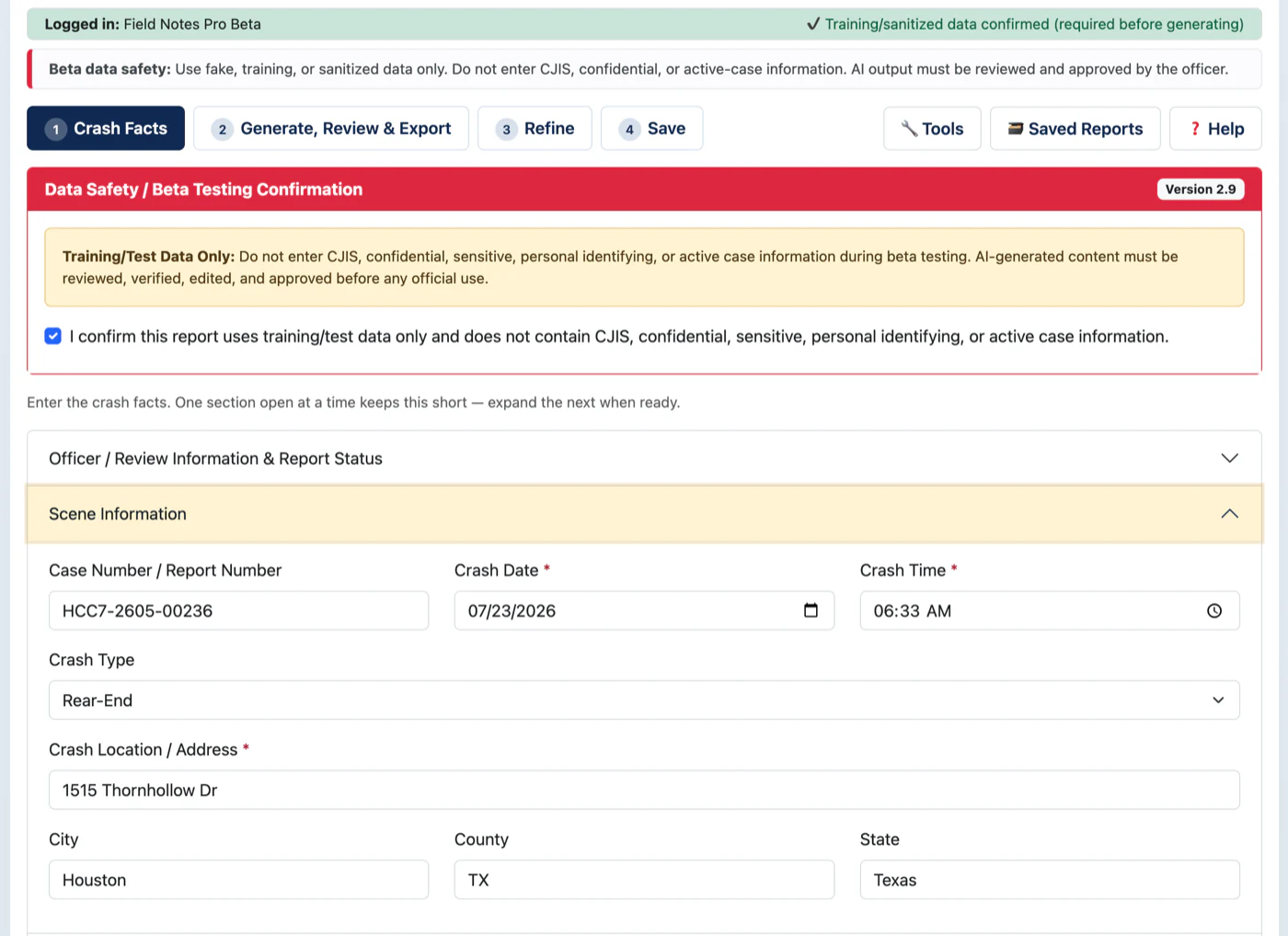
Training/Test Data Only: Do not enter CJIS, confidential, sensitive, personal identifying, or active case information during beta testing. AI-generated content must be reviewed, verified, edited, and approved before any official use.
Officer / Review Information
When enabled, the AI gives more coaching-style feedback for training or reviewer use.
Use this to track whether the saved report is still a draft, has been reviewed, or is final.
Scene Information
Location and Roadway. Capture roadway, lighting, weather, surface, alignment, intersection, lane, grade, curve, and shoulder details.
Weather, Lighting, and Roadway
Units and Drivers. Add, review, and remove units without leaving the workflow. Existing Add Unit and Remove Unit behavior is preserved.
Unit Information
Use Add Unit for crashes involving more than two units. Each unit can include type, direction, action, damage, and unit-specific notes.
Conditions and Evidence. Record injuries and evidence checklist items before drafting the narrative.
Injuries
Evidence Checklist
Use this checklist to track common documentation items. The checklist supports the narrative review and helps flag missing evidence or documentation.
Narrative Details. Enter officer notes and follow-up answers, then generate or revise the narrative draft.
Officer Notes
Check this box when you are using follow-up answers to improve a previously generated narrative.
Generate / Review / Save. Work with saved reports, generated output, PDF exports, and AI output quality review in one compact panel.
Saved Reports DatabaseVersion 2.7 Stable
Use Refresh Saved Reports to view reports saved under your account. Reviewer and Admin users can view all reports. Officers see their own reports. Reviewers can update review/status fields but cannot delete reports. Admin users can update and delete all reports.
Saved reports will appear here after you refresh the list.
Submitted Crash Information
Submitted crash information will appear here.
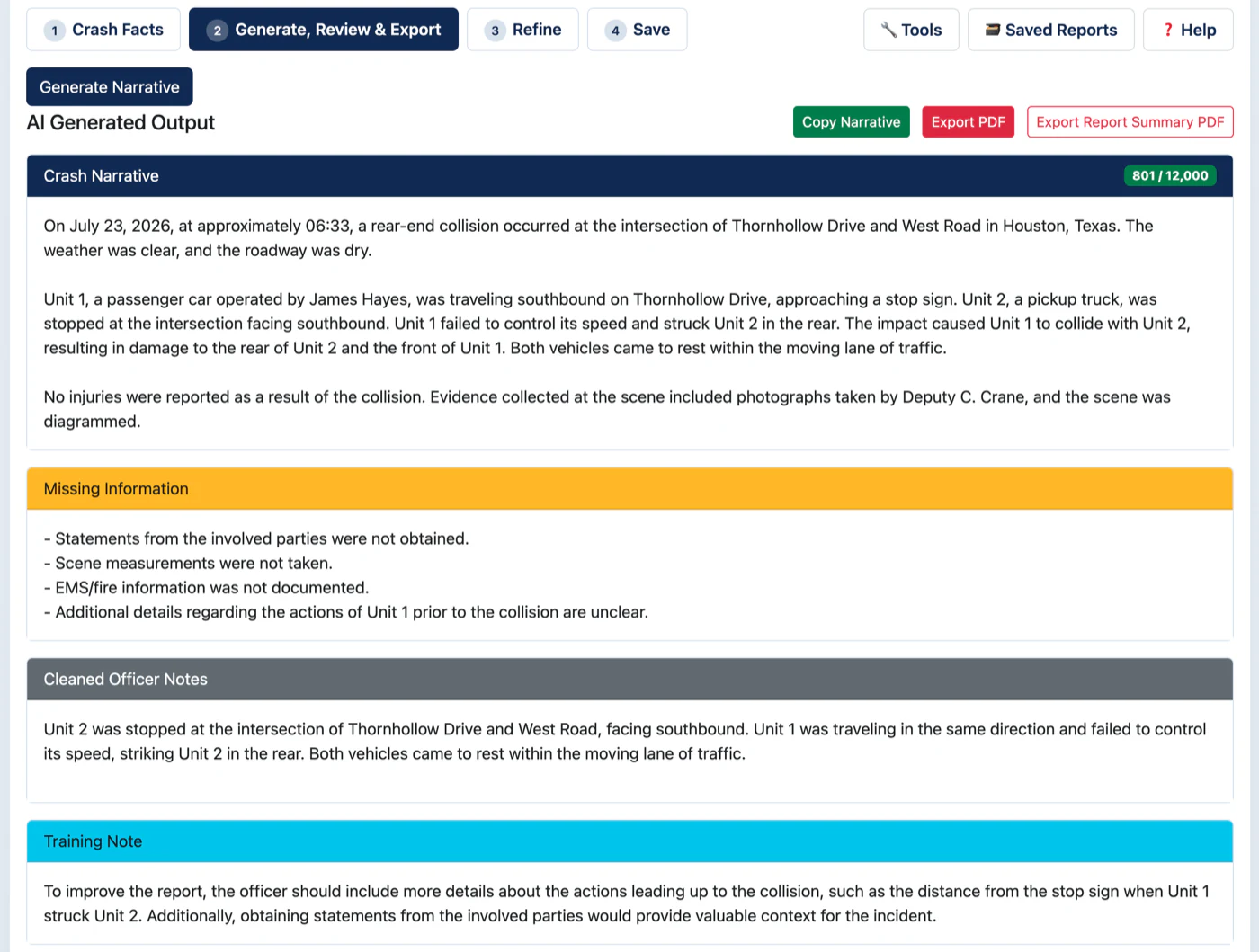
AI Generated Output
Crash Narrative
Narrative will appear here.
Missing Information
Missing information will appear here.
Cleaned Officer Notes
Cleaned officer notes will appear here.
Training Note
Training note will appear here.
Quality Score
Quality score will appear here.
Follow-Up Questions
Follow-up questions will appear here.
AI Output Quality ReviewVersion 2.7 Stable
After generating or loading AI output, rate whether the narrative was useful. Do not include CJIS, confidential, sensitive, personal identifying, or active case information in review notes.
CR-3 Code Helper. Ask coding and contributing-factor questions for training-focused guidance. Officer judgment remains final.
CR-3 Code Helper
Ask focused CR-3 coding questions. Example: What does factor 22 mean? or What is the difference between 22 and 44?
CR-3 Code Helper Output
CR-3 code guidance will appear here.
Contributing Factor Review
Enter crash facts or ask a factor-related question. This tool provides training guidance only. The officer must make the final contributing factor determination.
Contributing Factor Review Output
Contributing factor guidance will appear here.
Review, Training, Feedback, and Support. Reviewer/Admin panels remain role-gated. Officers can submit beta feedback or support requests without scrolling the full app.
Beta FeedbackVersion 2.7 Stable
Beta reminder: Do not enter sensitive, confidential, CJIS, personal identifying, or active case information in feedback. Use test examples only.
Support / Issue ReportingVersion 2.8 Step 3
Support reminder: Use this section for technical issues that need follow-up. Do not include real case details, CJIS, confidential, sensitive, or personal identifying information.